Your first image
-
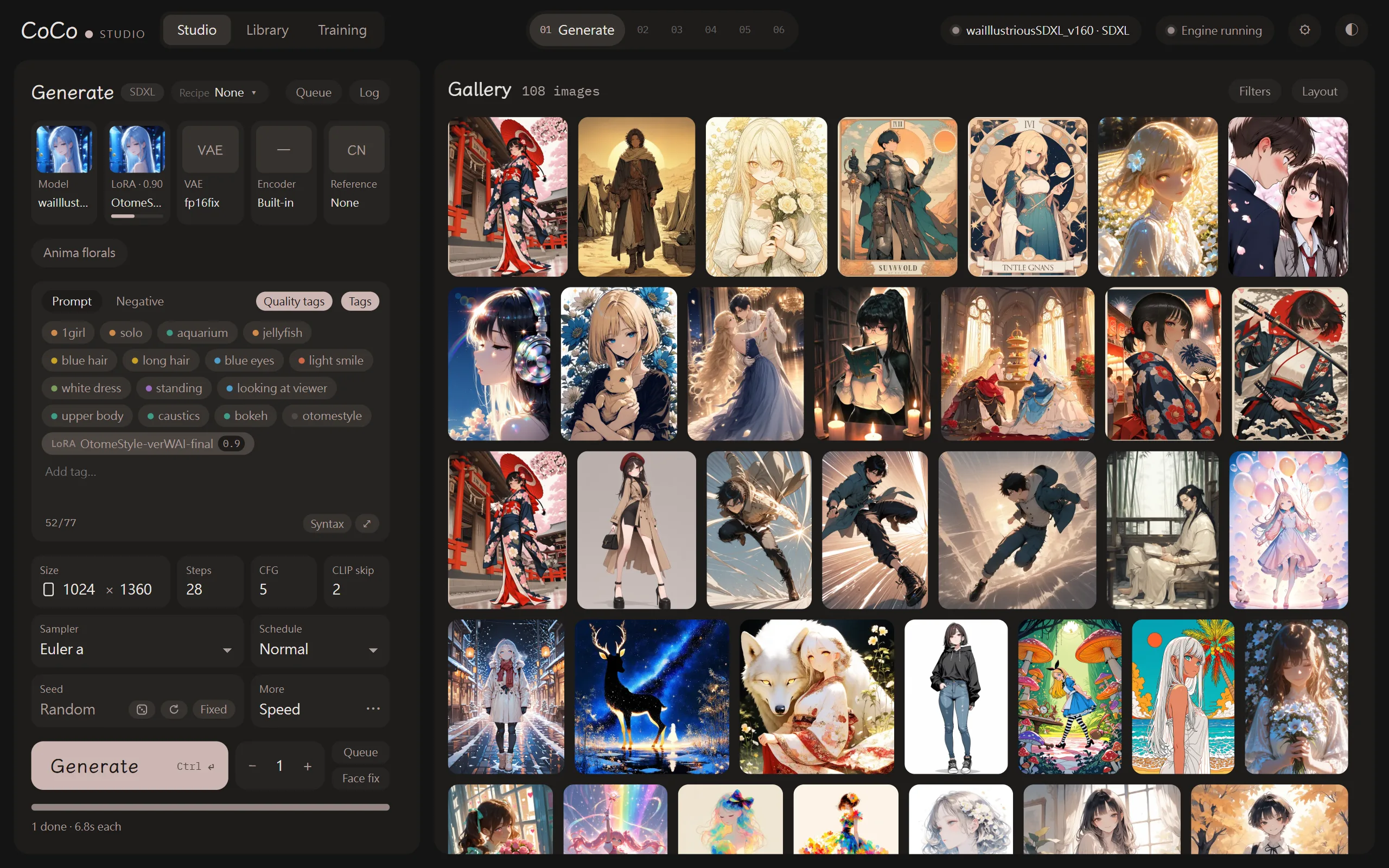
Choose “Studio” at the top, then “Generate” in the step bar.
-
Click the “Model” slot on the left to open the asset library, and choose a model (for example the trial model
anima-aesthetic-v1.1). -
Describe the image you want in “Prompt”. English tags give the most consistent results with anime models, for example:
1girl, solo, school uniform, cherry blossoms, smile, looking at viewer -
Press “Generate”, or Ctrl + Enter in the prompt.
New images appear on the right; click one to view it large. Files are saved in data\outputs\<date>\ inside the CoCo folder and are added to the library automatically.
Key points
Section titled “Key points”- Quality tags are added automatically: each model has recommended quality tags (such as
masterpiece, best quality) and a default negative prompt, which are added when you generate, so you don’t need to type them. “Quality tags” above the prompt shows what is added and can turn it off. - Tags can be searched in Chinese: type a Chinese word in the prompt (for example 櫻花) and the matching English tags are listed.
- Count: set how many images to generate at once next to the Generate button.
- When you switch to a model of a different architecture, steps, CFG and sampler change to that architecture’s recommended values. Values you change are remembered and reused the next time you use that architecture.
Further reading
Section titled “Further reading”- More control over the image: Prompts and tag mode, Steps, CFG and samplers
- Choosing the best of many images: Compare
- Using your own style: LoRA, Training LoRA