Recombine
Once you’ve picked a few favourites, you’ll often wonder “what if A’s model used B’s LoRA?” That’s what “Recombine” is for: each image is split into parts, and you decide, cell by cell, whose part to use.
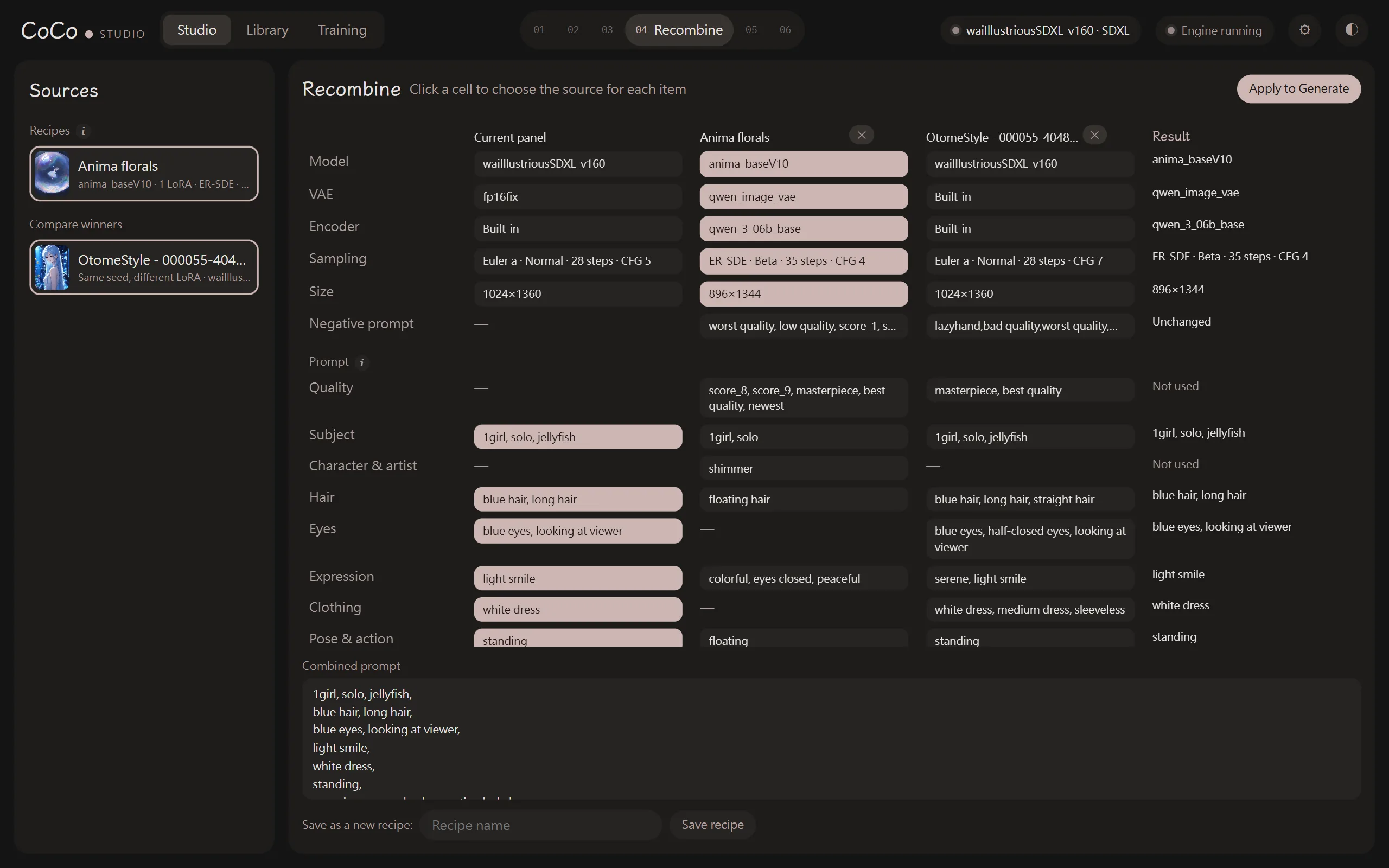
Choosing sources
Section titled “Choosing sources”“Sources” on the left come in two kinds:
- Compare winners: images marked as winners in Compare.
- Recipes: saved combinations of settings.
The first column is always the “Current panel” (your generate panel); add up to 4 more sources next to it.
Mixing cell by cell
Section titled “Mixing cell by cell”The page is a table. Each column is a source and each row a part: Model, VAE, Encoder, Sampling, Size and Negative prompt.
- Click a cell to take that part from that column. The “Result” column on the right updates as you go.
- Parts that don’t match the current model’s architecture are flagged.
LoRAs can be mixed
Section titled “LoRAs can be mixed”The LoRA row isn’t limited to one column: clicking a cell adds that column’s LoRAs (with their weights), and clicking again removes them. Edit weights directly in the result column.
Prompt
Section titled “Prompt”The prompt is split into tags and grouped by category (hair, clothing, scene…). For each group, pick which sources to use (several allowed); duplicate tags are kept once. The “Combined prompt” appears below.
Using the result
Section titled “Using the result”- “Apply to Generate” puts the result back in the generate panel, ready to go.
- “Save as a new recipe” stores it under a name so you can apply it in one click later.
What a recipe is
Section titled “What a recipe is”A recipe stores the model, LoRAs, VAE, encoder, sampling, size and negative prompt; with “Include prompt” checked it stores the prompt too.
- Applying a recipe with a prompt replaces the whole prompt.
- Applying one without a prompt only swaps the LoRA tags in your prompt and leaves the rest alone.
More in Recipes.